Settings Guide
Settings Menu Overview
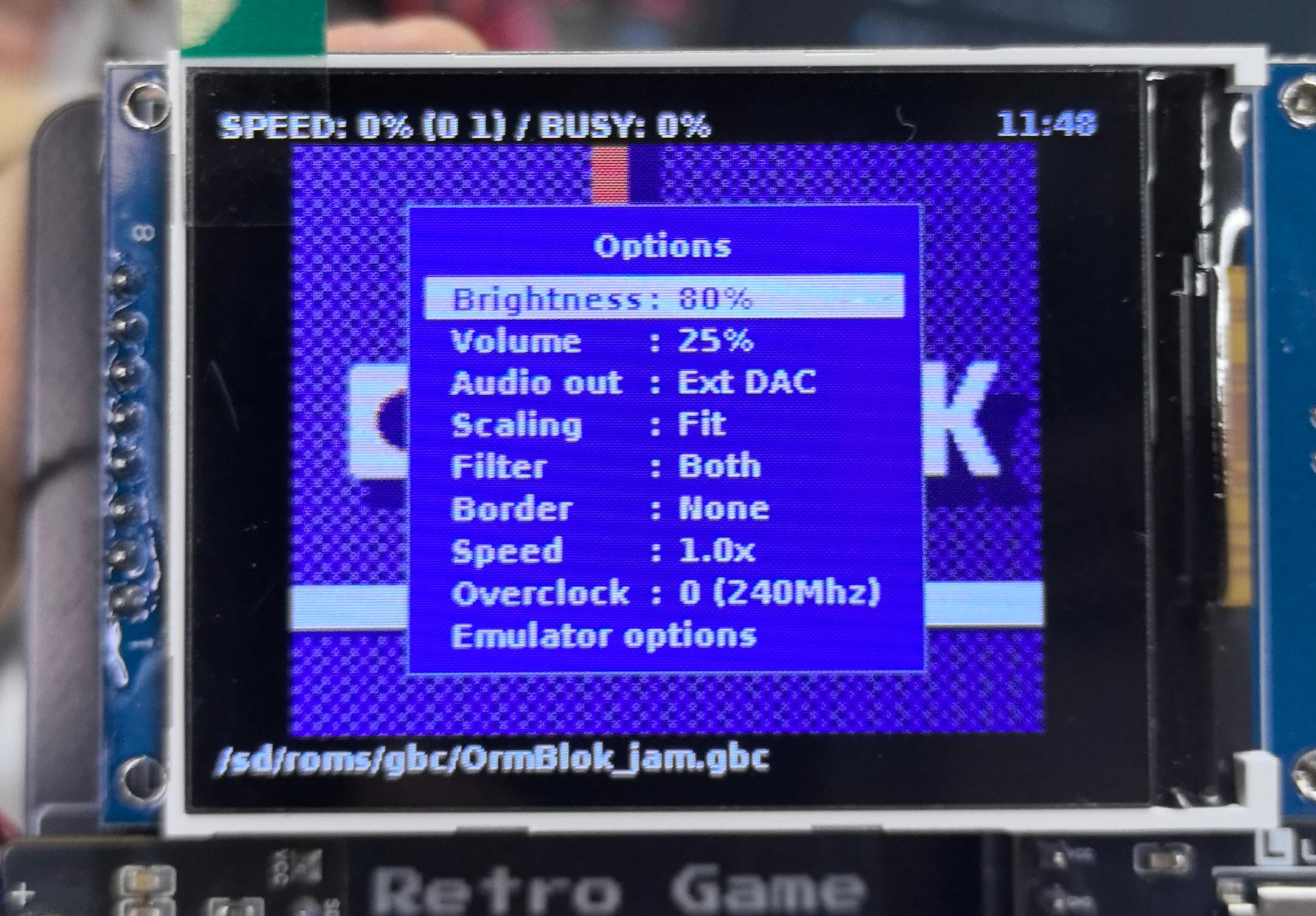
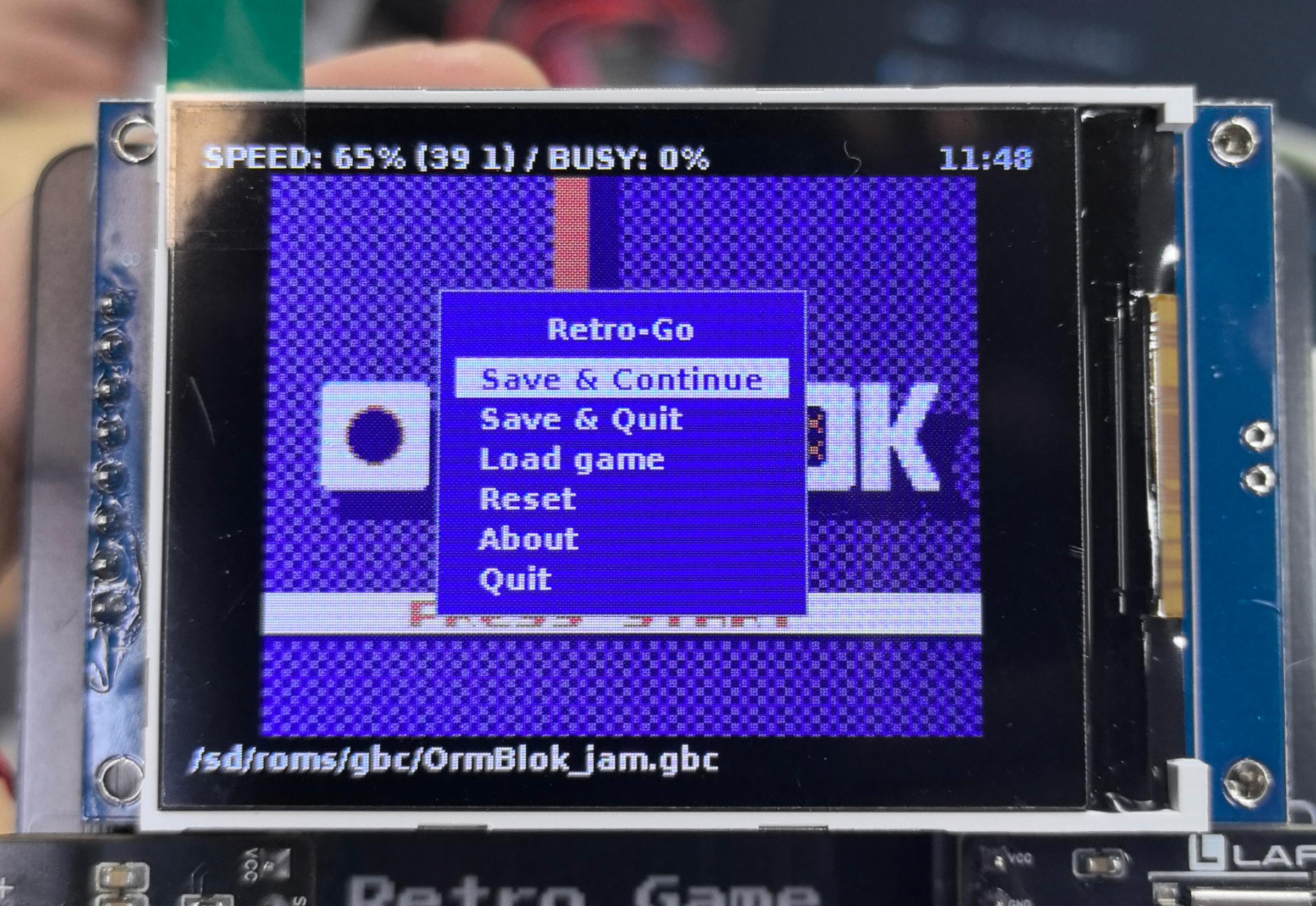
This system provides two independent settings menus, each with different functions:
Menu Type |
Function Description |
How to Open |
|---|---|---|
Option Menu |
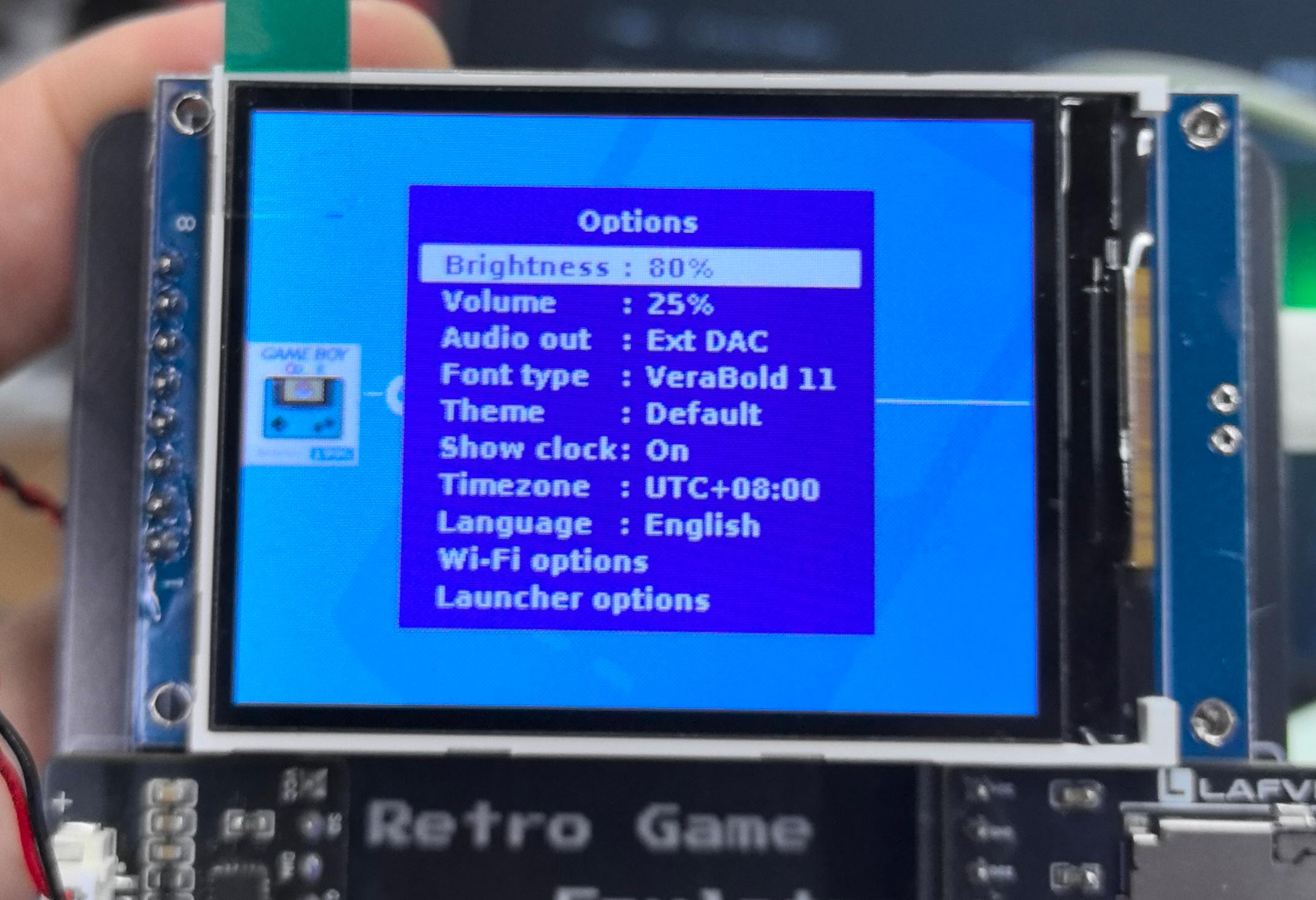
System global settings (volume, brightness, language, theme, etc.) |
Press Option button |
Menu Menu |
In-game operations (save, load, etc.) |
Press Menu button during gameplay |
Note
Option Menu: Can be opened from main interface or during gameplay to modify system-level settings
Menu Menu: Only available during gameplay, used for in-game operations
Volume Adjustment
Adjusting Volume Level
Steps:
Press Option button to open system menu
Select Volume option
Use directional keys (left/right) to adjust volume level
Volume range: 0-100 (0 is mute, 100 is maximum volume)
Press B button to return and automatically save settings
Tip
Volume settings take effect immediately - you can listen while adjusting.
Brightness Adjustment
Adjusting Screen Brightness
Steps:
Press Option button to open system menu
Select Brightness option
Use directional keys (left/right) to adjust screen brightness
Brightness range: 0-100 (recommended setting: 70-90)
Press B button to return and automatically save settings
Operation |
Description |
|---|---|
Directional key (right) |
Increase brightness (+10) |
Directional key (left) |
Decrease brightness (-10) |
B button |
Save and return |
Tip
Adjust brightness according to ambient lighting to avoid eye fatigue
Game Speed Adjustment
Adjusting Game Running Speed
In some cases, you may need to adjust the game’s running speed (such as practicing difficult levels or speed running).
Steps:
Press Option button during gameplay to open menu
Select Speed option
Use directional keys (left/right) to select speed multiplier
Available speeds: 0.5x, 1.0x (normal), 1.5x, 2.0x
Press B button to return and save settings
Speed Multiplier |
Use Case |
|---|---|
0.5x |
Slow mode, suitable for practicing high-difficulty levels or precise operations |
1.0x |
Normal speed (default), authentic game experience |
1.5x |
Fast mode, suitable for repetitive levels |
2.0x |
Super fast mode, suitable for speed running or skipping cutscenes |
Warning
Modifying game speed may affect audio synchronization and game experience
Some games may experience lag or anomalies at non-normal speeds
Recommended to play at normal speed (1.0x) for best experience
Language Switching
Switching Interface Language
The system supports multiple interface languages for users in different regions.
Steps:
Press Option button on launcher interface to open system menu
Select Language option
Press A button to enter language selection submenu
Use directional keys (up/down) to browse available languages
Press A button to confirm selection - system will automatically switch language and return to main interface
Supported Languages
English German and French.
Note
Language settings only affect system menus and interface text
Does not affect in-game content language (game language is determined by the ROM itself)
Language settings take effect immediately and are automatically saved
Other Settings Options
The system also provides the following advanced settings options that can be adjusted according to personal preferences:
Audio Output (Audio Out)
Theme (Theme)
Font Type (Font Type)
Launcher Options (Launcher Options)
Time Zone Settings (Time Zone)
Set system time zone, affects save timestamps and in-game clock:
For detailed usage methods and advanced features of the above settings options, please visit the original project homepage for complete documentation:
GitHub Project: [https://github.com/ducalex/retro-go]